Install
Add Checkme to Claude
It takes about two minutes. You need a Claude account; Checkme itself needs none.
As a custom connector
Works nowWorks on the web and in the desktop app. Once it's added, it's in the phone app too.
-
Copy the connector address
Or select the address and copy it yourself.
-
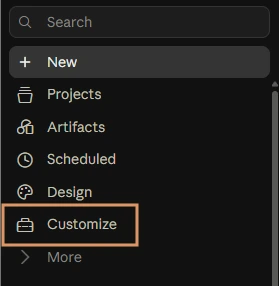
Open Customize
In Claude's sidebar, choose Customize.
-
Add a custom connector
On the Connectors tab, choose Add, then Add custom connector.

-
Name it and paste the address
Name it Checkme, paste the address and choose Continue.
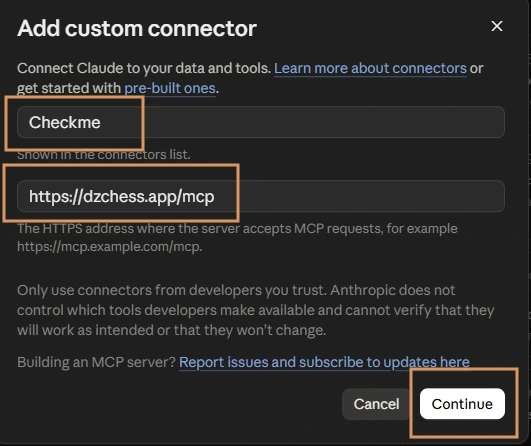
The name can be anything; the address must be exact. -
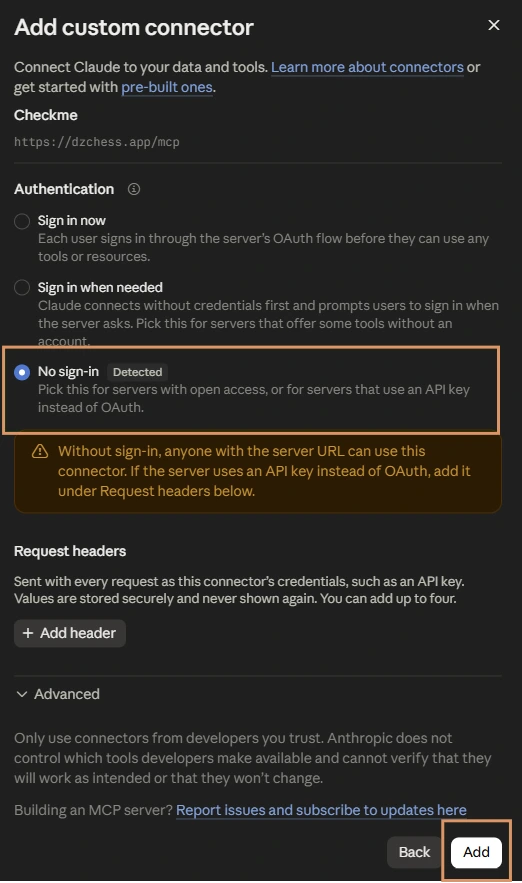
Choose No sign-in
Under Authentication, choose No sign-in, then Add. Checkme has no account to sign in to.
-
Allow it in advance
In Checkme's tool permissions, set each group to Always allow.
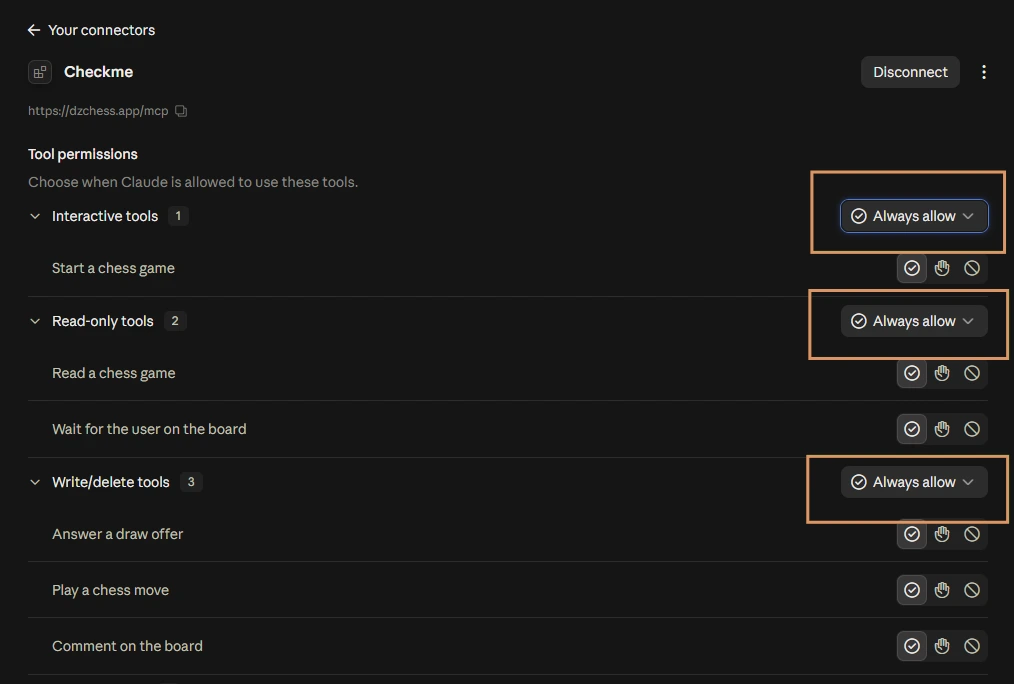
Otherwise Claude may ask before each move. -
Get checked.
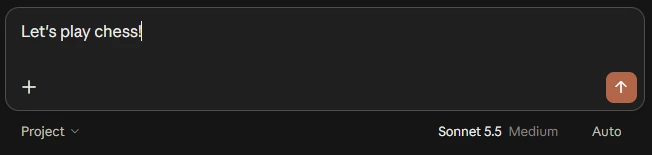
In a new chat, say “let's play chess”.
From the Claude directory
Not listed yetWhen Checkme is listed, this is the quickest way. Until then, use the custom connector above.
-
Open the directory
In Claude's sidebar, choose Customize, then Connectors and Discover.
-
Find Checkme
Search for Checkme and choose Connect.
-
Get checked.
In a new chat, say “let's play chess”.
Say it your way
Name an opponent, a level or a clock in the same sentence: “Play me as Stockfish at level 3, with a ten-minute clock.”
Don't see the board?
Check that Checkme is on for this chat, then start a new chat. Work and school accounts may need an administrator to allow custom connectors. The connector's address must be https://dzchess.app/mcp, with nothing added. Troubleshooting